Install 3CX SBC on Raspberry Pi

This guide is broken into two sections. The first section covers the installation & configuration of the Raspberry Pi’s OS,
and the second section covers the installation & configuration of the 3CX-SBC program that will be running on the Pi.

Section 1: Installation & Configuration of Raspbian Linux on the Raspberry Pi:

Download latest Raspbian Linux Lite from raspberrypi.org – https://www.raspberrypi.org/downloads/
Use Etcher to write the downloaded Linux image to the SD card – https://www.balena.io/etcher/
Remove and re-insert the SD card
Use notepad or similar to create a blank text file on the root of the SD card called ssh and remove the extension from the filename
Unmount the SD card and insert into the Raspberry Pi
Connect to network & power
Locate the let it boot, locate it in DHCP (should appear as ‘raspberrypi’)
SSH to the Raspberry Pi using the IP address in DHCP with username: pi, and password: raspberry
Enter in sudo raspi-config
Using the Raspberry Pi configuration utility, make the following adjustments:
Under the localisation menu, set up appropriate settings for the region in all four sub menus:

  • Change Locale to en_AU.UTF-8
  • Change Timezone to Australia, Melbourne
  • Change Keyboard Layout to EN_AU
  • Change Wi-Fi Country to Australia
  • Back out to the main menu, and enter the Network Options

Change hostname to something meaningful like 3CXSBC01
Change the user password for the account ‘pi’ to something else
Identify the MAC address either in DHCP or using the ‘ifcommand’ & looking at the ether line under eth0
Log into the client’s DHCP server and create a DHCP reservation for the MAC address on their network (assuming the VLAN for VoIP has already been setup) – a static IP address can also be used instead of a reservation.
Update the client docuemntation with the hostname, IP address, username & password
Reboot the Pi after exiting the configuration program
SSH back into the pi
Enter the command: sudo apt-get update to install any updates to the OS

Section 2: Installation & Configuration of 3CX-SBC onto the Raspberry Pi:

Now it’s time to download and install the 3CX-SBC program onto the Pi…
Enter the command:

wget https://downloads-global.3cx.com/downloads/sbc/3cxsbc.zip -O- | sudo bash

You will be presented with the 3CX SBC installer program which will outline the 3CX system requirements for the version of SBC you are installing on the Pi.
Press OK, accept the license agreement (no one is going to read this anyway)
From here, you will need to enter in the URL from the 3CX web interface for the SBC Trunk
Next enter in the Authentication key
Press OK to proceed and it will finalise configuration
Confirm in the 3CX Web console that the SBC trunk has come online

Congratulations! You have successfully completed the instalation of 3CX-SBC on a Raspberry Pi

Useful Xsan administrative commands for Mac OS X MDC’s

  • cvadmin – Administer an Xsan File System (show volumes, stop volumes, start volumes, view storage pools, manage quotas
  • cvaffinity – List or set affinities for storage pools
  • cvcp – Xsan copy utility (use at your own risk)
  • cvdb – Xsan debugger
  • cvdbset – Used to control the Xsan debugger
  • [slider title=”cvfail”]cvfail[/slider]- Fail volumes over between metadata controllers
  • cvfsck – Check consistency and repair Xsan volumes
  • cvfsdb – FileSystem debugging tool
  • cvfsid – Display system identification information (useful when integrating StorNext clients)
  • cvgather – Compile debugging information for Xsan
  • cvlabel – Label LUNs for use with Xsan
  • cvmkdir – Directory creation tool for Xsan
  • cvmkfile – File creation tool for Xsan
  • cvmkfs – File system (volume) creation tool for Xsan
  • cvuntrespass – Recover files that trespass into restricted areas (like when you got caught jumpin’ the fence of that sorority house back in the day)
  • cvupdatefs – Make a change to an existing volume
  • cvversions – Obtain patch level and versioning information for the system, Xsan and when the patches were compiled.
  • fsm – Volume controller process
  • fsmpm – Volume manager that runs on each node
  • mount_acfs – Xsan mounter
  • sndiskmove – Migrate the contents of one LUN to another LUN
  • sndpscfg – Disk proxy server config tool
  • snfsdefrag – Defragment the volume
  • snmetadump – Save and/or process metadata
  • snmetatar – Backup metadata to tar
  • xsanctl – Xsan control tool allows you to quickly and easily ping (check a client), mount/unmount volumes and check that volumes and disks haven’t changed, all client-side
  • xsand – Xsan client daemon, reads the /Library/Filesystems/Xsan/config/automount.plist and mounts volumes as indicated in the property list

Notes and usage for the CVADMIN utility:

Of all the command line tools available to assist you in the management of an Xsan volume, cvadmin serves as the primary command line tool to interface with, troubleshoot, and ultimately administer your Xsan. It provides for capabilities beyond what is available through Apple-provided GUI tools, which can be extremely useful for resolving the more complex problems that can crop up. Given the reported issues with Xsan Admin occasionally misreporting information, cvadmin is one of the tools that can help to make your experience administering an Xsan much less frustrating.

Read more below…

The basics:
Located at /Library/Filesystems/Xsan/bin/cvadmin, this tool can be run either interactively or non-interactively with the ‘-e’ flag. For the purposes of this article, we’ll be using primarily the interactive function of cvadmin. In it’s most basic form, cvadmin is started with no arguments, but must run as root. If you fire up cvadmin from a different user account, the tool will run, but you will not be able to access your filesystems. To get started we’ll launch the program with elevated privileges:

fig. 1
$ sudo /Library/Filesystems/Xsan/bin/cvadmin
Xsan Administrator
Enter command(s)
For command help, enter "help" or "?".

List FSS

File System Services (* indicates service is in control of FS):
1>*MyVolume[0] located on 192.168.56.5:51520 (pid 512)
2> MyVolume[1] located on 192.168.56.6:51520 (pid 509)

Select FSM "MyVolume"

Created : Tue Jan 13 15:33:57 2009
Active Connections: 1
Fs Block Size : 16K
Msg Buffer Size : 4K
Disk Devices : 2
Stripe Groups : 2
Fs Blocks : 61277616 (935.02 GB)
Fs Blocks Free : 61006893 (930.89 GB) (99%)


Xsanadmin (MyVolume) >

When cvadmin is first invoked it displays all of the valid File System Services (which in this context means volumes per metadata controller) and selects our only volume. In this particular instance, you see that there are two entries for “MyVolume”. This is completely normal as you should see one entry per volume per metadata controller. In this case, we have one volume and 2 metadata controllers, so we have 2 entries. The asterisk denotes the active FSS (or active metadata controller), in this case 192.168.56.5.

In order to perform any worth while tasks using these tools, we next need to ‘select’ a volume. In this particular instance, there is only one volume and so cvadmin ‘selected’ the active volume and displayed the statistics for that volume. But in environments where there are multiple volumes you will need to ‘select’ a volume before you proceed with using cvadmin. The cvadmin prompt will always display the active volume (in this case ‘MyVolume’), so there is no confusion as to which is being administered:

Xsanadmin (MyVolume) >

If more than one volume existed, we may desire to operate on a different volume, to do so we can simply run the command “>select volumeName” which would then select the volume “volumeName” and output statistics for it. Alternatively, the select command can be run with no arguments to output a list of all availableFile System Services.

fig 2.
Xsanadmin (MyVolume) > select
List FSS

File System Services (* indicates service is in control of FS):
1>*MyVolume[0] located on 192.168.56.5:51520 (pid 512)
2> MyVolume[1] located on 192.168.56.6:51520 (pid 509)

Practical Administration:
Ok, so we now know how to run the tool and select a particular volume, but what else can we do with it? Well, the answer is “quite a bit”; for the most part, my day-to-day Xsan administration happens only in cvadmin, the only reason that I typically fire up Xsan Admin is to help end users who rely on it. A full list of commands is available in the cvadmin man pages, or by typing “help” in an interactive cvadmin session. That being said, the commands listed below are my most frequently used:

>who

Query client list for the active file system. The output will show the following information for each client.SNFS I.D. – Client identifier Type – Type of connection. The client types are: FSM – File System Manager(FSM) process ADM – Administrative(cvadmin) connection CLI – File system client connection. May be followed by a CLI type character: S – Disk Proxy Server C – Disk Proxy Client H – Disk Proxy Hybrid Client. This is a client that has been configured as a proxy client but is operating as a SAN client. Location – The clients hostname or IP address Up Time – The time since the client connection was initiated License Expires – The date that the current client license will expire

>stats

Prints out volume statistics.

>stop/start MyVolume
>stop/start MyVolume on 192.168.5.5

The stop and start commands are equivalent to starting or stopping the volume in Xsan. However, by specifying a hostname/ip, we can stop file system services only on that particular MDC, which can be handy for maintenance purposes.

>fail MyVolume

This will failover the volume “MyVolume” and initiate a FSS vote amongst your metadata controllers. The metadata controller providing services for this volume with the highest failover priority should win this election. If no failover is available, the volume will failback to the original host that was hosting the volume.

>fsmlist

This will output a list of FSM processes on the machine that is selected, which is useful when determining which volumes it is capable of hosting as a metadata controller.

>repof

This will generate an open file report to /Library/Filesystems/Xsan/data/MyVolume/open_file_report.txt. This report includes a slew of information, but noticeably absent is the actual file name. Arg! It does offer an inode number for the file in question though, so you can use a command such as `find /Volumes/MyVolume -inum X` to determine the actual file from the published inode number. The >repof command can be very useful when attempting to determine why a client will not unmount a volume.

Troubleshooting:
There are also a number of options to help with more complex troubleshooting.

>show
>show long

This will output information about the stripe groups/storage pools used by this volume. It is useful for cross referencing index numbers outputted in system.log to human readable storage pool names. It also provides various statistics and configuration, such as stripe group role, corresponding LUNs, affinity tags, multipath method, and other useful bits of information.

>paths

This will output a list of LUNs visible to the node and the corresponding HBA port used to communicate with that LUN. This option can be helpful when you are getting those pesky “stripe group not found” errors.

>debug 0x01000000

This will output IO latency numbers to /Library/Filesystems/Xsan/data/MyVolume/log/cvlog immediately (which is otherwise done every hour). The key figure to look at in this output is the “sysavg” number for “PIO HiPriWr SUMMARY”. If your metadata is hosted on an Xserve RAID volume, this number should be below 500ms. If you’re using Promise based storage, the active/active controller setup introduces additional latency, you will see numbers in the 805-1000ms range.

>latency-test

Use this command to run latency tests between the FSM and clients. It can be used to isolate problematic clients on the SAN.

>activate MyVolume 192.168.56.5

Use this command to activate FSS services for the specified IP/hostname. Alternatively you can leave off the IP and it will activate the local server (if applicable). This command can be run on an MDC if it is not showing appropriate FSS services available. If you see errors to the effect that an MDC is on ‘standby’, activating the volume on the respective server will often address this issue.

When to Use Another Tool:
The cvadmin tool is very useful when troubleshooting metadata controller behavior. But cvadmin isn’t used when you want to perform Xsan setup or client management operations. To label LUNs you would use cvlabel. To mount and unmount volumes you would likely use the new xsanctl tool or ‘mount -t acfs’. To perform defrag operations and volume maintenance you would use the snfsdefrag and cvfsck tools, respectively. While you can add serial numbers and create volumes from the command line, it is probably much easier to continue performing these operations through the Xsan Admin GUI tool.

All in all, cvadmin can be a very useful tool. It is fast and can help to ease the administrative burden of managing an Xsan once you get used to it. Unlike the GUI, the information that it displays can always be trusted to be an accurate representation of the state of your SAN. It can also provide more insight when you’re troubleshooting and help you to become a more lucid Xsan administrator.

Archive and restore Open Directory data

You archive and restore Open Directory data using the Server app or the command line. To archive or restore a copy of your Open Directory data using the command line, use the slapconfig command. You can archive a copy of the data while the Open Directory master is in service.

The following files are archived:

  • The LDAP directory database (includes password data) and configuration files
  • Kerberos configuration files
  • Keychain data needed by Open Directory

Archives are only used by Open Directory masters. If a replica develops a problem, you can remove it as a replica from the Open Directory master, set up the replica as if it were a new server (with a new host name), then set it up again as a replica of the same master.Important: Carefully safeguard the archive media that contains a copy of the Open Directory password database, the Kerberos database, and the Kerberos keytab file. The archive contains sensitive information. Your security precautions for the archive media should be as stringent as for the Open Directory master server.

If you enable Time Machine on the server, directory and authentication data is automatically archived.

Archive Open Directory data using the Server app

  1. In the Open Directory pane, click Servers.
  2. Choose Archive Open Directory Master from the Action pop-up menu (looks like a gear).
  3. In the Archive File field, enter or choose the path to the folder where you want the Open Directory data archived.
  4. Enter a password for the archive, then click Next.
  5. Confirm your settings, then click Archive.

Archive Open Directory data using the command line

You can archive Open Directory data from the command line.

To archive Open Directory data, open the Terminal app (located in the Other folder in Launchpad), then enter the following command:

$ sudo slapconfig -backupdb /full/path/to/archive For example, /full/path/to/archive could be /Volumes/Data/myODArchive.

Enter a password to encrypt the disk image. Encrypting the image protects the sensitive data in the Open Directory database.

The archive file will have the file extension “.sparseimage”.

Restore Open Directory data using the Server app

  1. In the Open Directory pane, turn Open Directory on.
  2. Select “Restore Open Directory domain from an archive,” then click Next.
  3. In the Archive File field, enter or choose the path to the Open Directory archive file.
  4. Enter the password for the archive, then click Next.
  5. Click Restore.

Restore Open Directory data using the command line

You can restore Open Directory data from the command line.

To restore Open Directory data, open the Terminal app (located in the Other folder in Launchpad), then enter the following command:

sudo slapconfig -restoredb /full/path/to/archive.sparseimage

For example, /full/path/to/archive.sparseimage could be /Volumes/Data/myODArchive.sparseimage.If you entered a password to encrypt the data when you archived it, enter that password when prompted.

The “Strict-Transport-Security” HTTP header is not set to at least “15552000”

The “Strict-Transport-Security” HTTP header is not set to at least “15552000” seconds. For enhanced security, it is recommended to enable HSTS

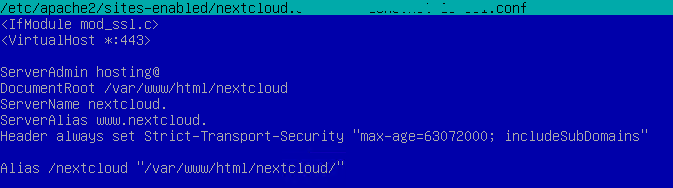
Edit your Apache vHost file configuration for NextCloud. If you have two (one for port 80, the other for port 443), then edit both

Right under the first block that contains the ServerAdmin, DocumentRoot, ServerName, and ServerAlias details, add another line with the below:

Header always set Strict-Transport-Security “max-age=63072000; includeSubDomains”

Save and close the configuration files

Restart the Apache web server

sudo systemctl restart apache2

Refresh the settings page in NextCloud and that alert message should now be removed.

3CX v16 Not Updating

This document applies to 3CX v16 instances hosted in AWS or running on Debian 9 (Stretch) that are stuck on older versions of 3CX v16 and seemingly just will not update.

SSH or web-console into the Debian instance

Edit the file /etc/apt/sources.list.d/saltstack.list

sudo nano /etc/apt/sources.list.d/saltstack.list

If the one line in this file reads: deb http://repo.saltstack.com/apt/debian/9/amd64/archive/2019.2.0/ stretch main
Then add # in front of it and add an extra line below that reads: deb http://repo.saltstack.com/apt/debian/9/amd64/latest stretch main

Your file should now read:

#deb http://repo.saltstack.com/apt/debian/9/amd64/archive/2019.2.0/ stretch main
deb http://repo.saltstack.com/apt/debian/9/amd64/latest stretch main


Save and close the file
CTRL+O
CTRL+X

Now manually update and upgrade the packages:

sudo apt-get update
sudo apt-get upgrade

Answer Y when prompted to proceed
If prompted about updating the configuration of the Minion package, say Y and press enter

Once the upgrades are completed, you can now go through the 3CX web console and start installing all the pending updates – note, there will be quite a few.

Note: Changes as of December 2021:

I had to update a 3CX instance tonight that refused to update using the 3CX console or the above.

In the end, I had to edit the file:

/etc/apt/sources.list.d/saltstack.list

and enter in the line:

deb https://repo.saltproject.io/py3/debian/9/amd64/latest/ stretch main

Next, you’ll need to install APT’s secure transport module using:

sudo apt-get install apt-transport-https

Now do the update:

sudo apt-get update
sudo apt-get upgrade

Now head back the 3CX Admin Console and continue upgrades from there…

Enable External Boot Media on T2 Security Chip-Enabled Macs

This guide covers the process to enabling a T2 security enabled Mac to boot from external media such as USB drives for purposes of reinstall or data recovery & diagnostics.

Applies to:

T2 security enabled Macs include macs below and newer versions thereof:

  • iMac (Retina 5K, 27-inch, 2020)
  • iMac Pro
  • Mac Pro (2019)
  • Mac Pro (Rack, 2019)
  • Mac mini (2018)
  • MacBook Air (Retina, 13-inch, 2020)
  • MacBook Air (Retina, 13-inch, 2019)
  • MacBook Air (Retina, 13-inch, 2018)
  • MacBook Pro (13-inch, 2020, Two Thunderbolt 3 ports)
  • MacBook Pro (13-inch, 2020, Four Thunderbolt 3 ports)
  • MacBook Pro (16-inch, 2019)
  • MacBook Pro (13-inch, 2019, Two Thunderbolt 3 ports)
  • MacBook Pro (15-inch, 2019)
  • MacBook Pro (13-inch, 2019, Four Thunderbolt 3 ports)
  • MacBook Pro (15-inch, 2018)
  • MacBook Pro (13-inch, 2018, Four Thunderbolt 3 ports)

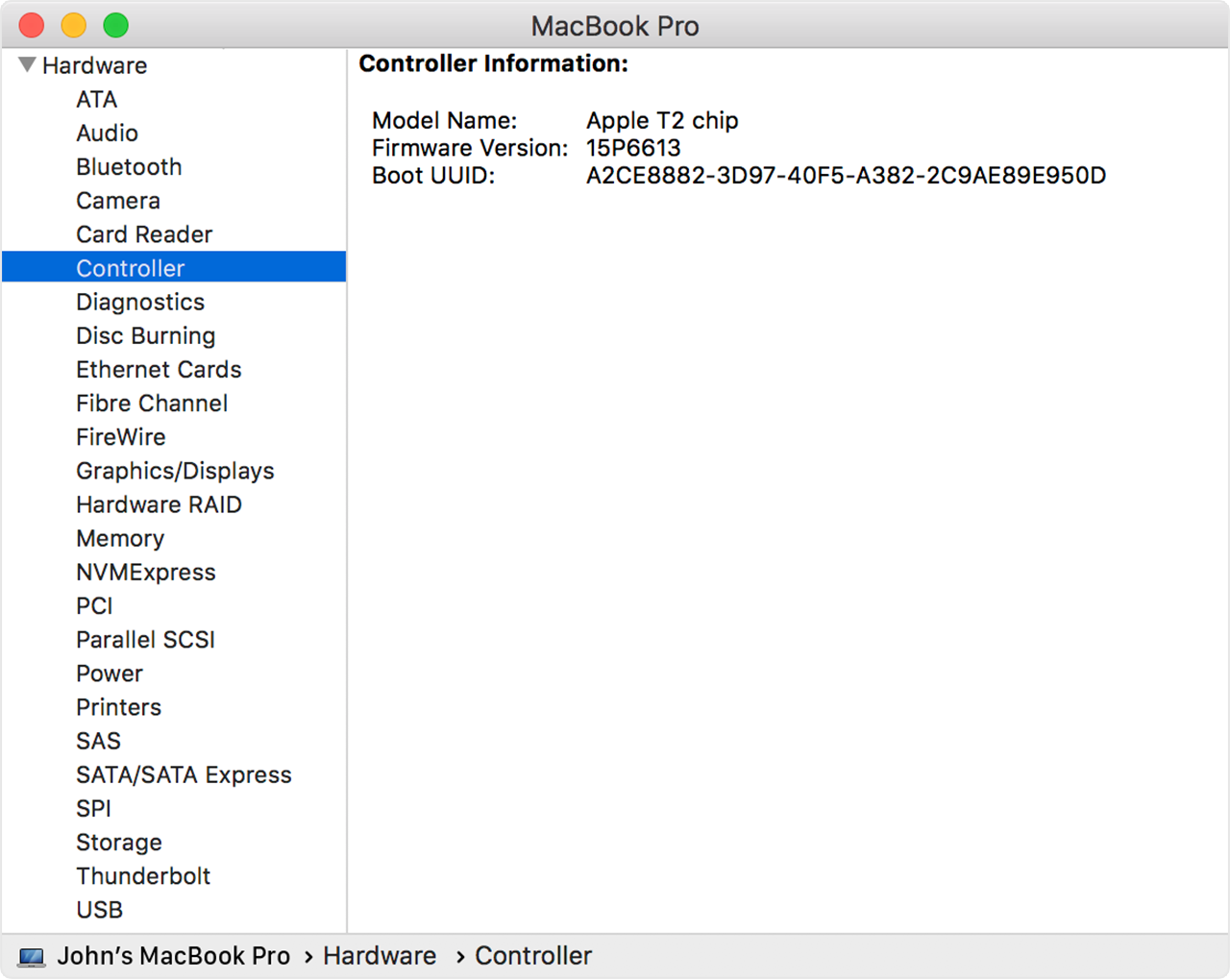
How to confirm if the Mac you’re working on is T2-enabled:

Click the Apple logo top-left > About This Mac > System Information / System Report…

What does T2 actually do?

In short, it provides additional security at a hardware level for the Mac. It provides additional security encryption levels for the OS Disk reducing CPU resources required for the same tasks, helps to prevent malicious code from being injected into the OS core, enhances secure boot, and provides certification of the OS at boot time.

Preparation:

Time required to perform steps outlined: 10-30 mins depending on the Mac and internet speed.

If the Mac already has a firmware password enabled, you will need to know what this is in order to boot into recovery mode & access system utilities.

You will also need to know the password to at least one admin level user account on the system

Steps to complete:

Shutdown the Mac

Power on the Mac holding down the left Alt/Option key

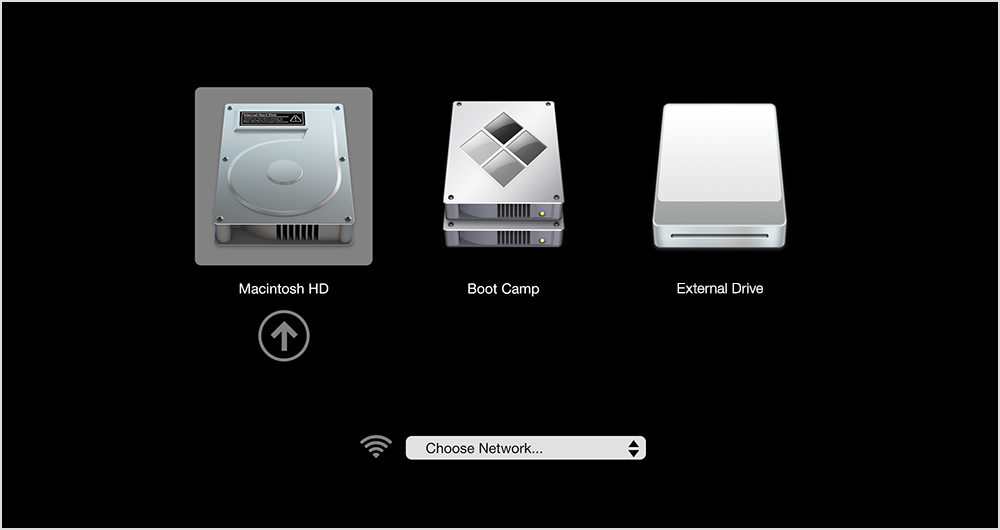
If successful and no firmware password present, you should see a screen similar to the boot screen below:

Image result for apple boot menu

If prompted for a password first, then this will be the firmware password.

At the boot selector screen, hold down the Command key and press R

This will start to boot into recovery mode. If the recovery mode OS is on the local disk, it will verify & boot from here, if not, it will download a copy from the Internet.

Once you reach the recovery environment, select the language, and then you should reach the recovery mode screen

Image result for apple booting recovery mode

From the Utilities menu at the top of the screen, select Startup Security (or similar, depending on OS / recovery mode version).

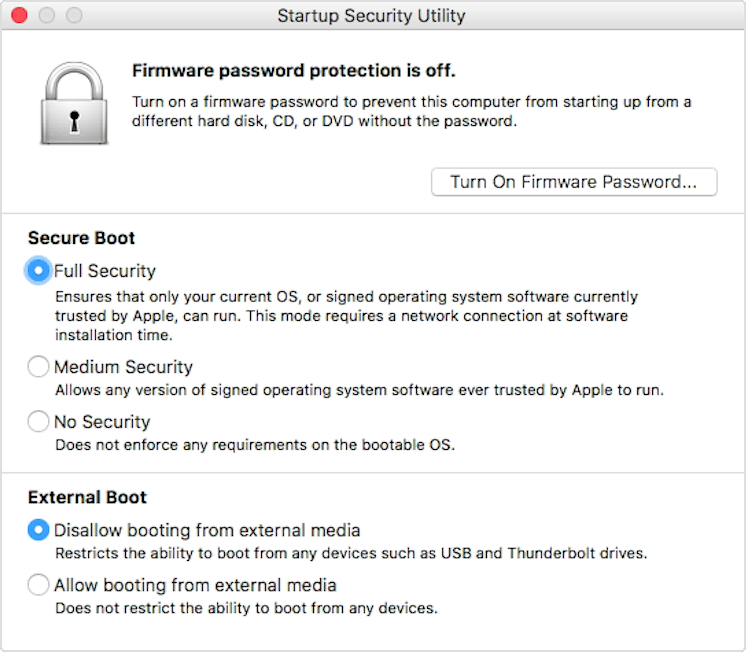
You should reach the below screen:

Startup Security Utility on Mac with Apple T2 Security Chip

Under External Boot, select the radio option for Allow booting from external media

Use Command+Q to quit back to the main screen

Use Command+Q to quit recovery mode, select reboot

Now when you boot up the Mac holding down the Alt/Option key to access the boot menu, inserting external bootable media will show up in the boot menu and allow the Mac to be booted from it.

Additional info:

If these steps still prevent booting from external media, you may need to go back into Startup Security and change the Secure Boot from: Full Security to: Medium Security – especially if the OS wasn’t recently signed by Apple on this Mac.

Configure Firmware Password to better protect Mac

The Firmware password for a Mac is primarily used to protect a Mac from being booted into recovery mode or from external boot media should the Mac fall into the wrong hands.

Think of it like a PC BIOS password that prevents anyone from accessing the BIOS settings or boot menu.

Typically, short of flashing the firmware using a hardware firmware flash tool, it provides excellent protection for portables against theft & resale should they be stolen.

Prerequisites:

If the Mac already has a firmware password enabled, and you need to remove or change it, you will need to know the current firmware password.

Forgotten firmware passwords require a support ticket with Apple along with proof of purchase.

Steps:

Shutdown the Mac

Power on the Mac – holding down the left Alt/Option key until the boot menu is displayed

Image result for apple boot menu

Once here, hold down the Command key and press R

The Mac will now boot into recovery mode

Once booted into recovery mode, select the language and you will then be at the recovery mode home screen

Image result for apple booting recovery mode

In the Utilities menu at the top, select Startup Security (for T2-enable Macs) or Firmware Password Utility (for older Macs)

If no password is currently set, you should have the option to Set Firmware Password…

Startup Security Utility on Mac with Apple T2 Security Chip

Once you have set the password, use Command+Q to exit back to the recovery mode home screen, use Command+Q to quit – selecting Reboot or Restart Mac.

Now whenever you boot the Mac holding down the Alt/Option key or any other startup interactive modes, you will be prompted for the firmware password you have set.

To remove the password, you will need to boot back into recovery mode and turn off the firmware password.

Notes:

As previously stated, it is highly recommended this is configured for all portable Macs where possible. Ideally, the client / user should know & document their firmware password – along with being it documented in both the Autotask configuration item and the ticket as an internal note.

Ticket should have “Firmware Password” in the description area or title for ease of search if its not being done in the initial setup ticket.

Failure to document & recall the password when required will require a password removal via Apple support, which will require the Mac, proof of purchase and the Mac will be out for service for a period of time while Apple technicians re-flash the firmware.

Hyper-V 2019 only using every second CPU Core or Thread

Issue: Hyper-V on Windows Server 2019 only using half the available CPU threads, and VM’s with larger CPU core counts often perform very poorly

image

Windows Server 2019, Hyper-V now defaults to a more secure “core scheduler” where previous versions used “classic scheduler” for CPU scheduling and isolation. What this means, is that when you migrate a VM over to Hyper-V on WS2019, you need to update the VM configuration and change some settings, or it will only use a single hardware thread per core, exhibiting the behavior you see above.

In Hyper-V on WS2016, the default setting for number of Hardware Threads per Core is “1”. What we want is to set this to “0” which will inherit the Host’s default configuration for this.

The below PowerShell commands will list all VM’s on the host, list their configuration versions, list the threads count per core, then set the new defaults to inherit settings from Hyper-V

Note: For the last command to work – setting the new defaults, affected VM’s need to be powered off.

#Get your Host supported VM guest configuration versions
Get-VMHostSupportedVersion
#Get your VM guest configuration versions
Get-VM | FT Name, Version
#Update all VMs configuration versions
Get-VM | Update-VMVersion
#Get the VM thread count per core setting
Get-VM | Get-VMProcessor | FT VMName,HwThreadCountPerCore
#Set the VM thread count per core setting
Get-VM | Set-VMProcessor -HwThreadCountPerCore 0

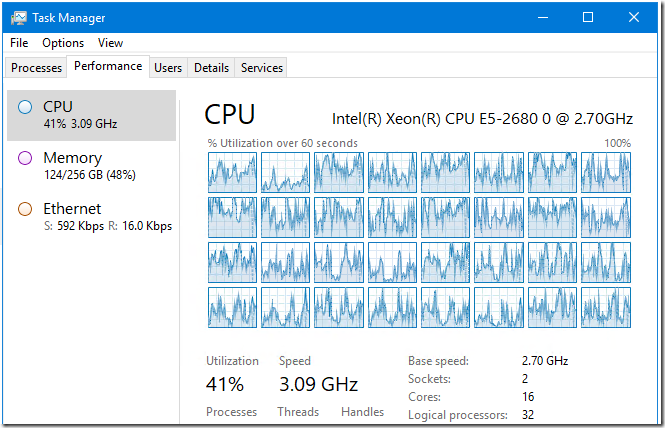
Now that the changes have been applied, here’s the task manager screen shot:

image

Note – this only impacts migrated VM’s. When a VM is created on Windows Server 2019 Hyper-V, this is not an issue as the VM’s inherits the default setting of the Host.

Join Mac to Active Directory – the Right way!

This guide will assist you to joining a Mac to AD. There are plenty of guides online, but many of them leave out certain key aspects that lead to issues when not performed properly.

First step, check AD for the next available computer name and create the computer AD entity in the correct OU.

Document the AD computer description field with useful information such as ticket number, model, user, serial number, etc

Identify & note down any users / groups that should have local administrative rights on the Mac

Setting the local workstation host name:

Apple Menu > System Preferences > Sharing > Computer Name

Now let’s get get domain joined:

System Preferences > Users & Groups > Login Options

Click the  to gain admin access using the local administrator account

Change Display login window as: Name and password

Change Show fast user switching menu as: Full Name

Click the Join… button

Click Open Directory Utility…

Click the  and authenticate to unlock

Highlight Active Directory

Click the pencil  button to edit

Populate the Active Directory Domain field with the AD name

Click the  icon to expand the options

Place a tick next to Create mobile account at login – this tells the Mac to create a local user profile for the AD account so a) the user has somewhere to store data, and b) the user can login when away from the AD network.

Click the Administrative Button

Place a tick next to: Allow administration by:

By default, it will have domain admins and enterprise admins pre-populated.

Use the + button to add in the additional resource users & groups noted earlier that will require local admin rights

Click Bind…

This will first prompt for the local admin password

Then it will prompt for the domain administrator username & password.

If all details are correct and DNS is working, the Mac will be joined to the directory.

If you followed the earlier instructions to pre-create the computer in AD, it will advise you that the computer account exists, and ask you if you want to use the existing computer account – say Yes.

Domain Join over a VPN:

If you need to join over a VPN connection, but the VPN connection is disconnected when switching user accounts, you can cache an AD account from the local admin account when still connected to the VPN post domain join using the below terminal commands:

sudo /System/Library/CoreServices/ManagedClient.app/Contents/Resources/createmobileaccount -n [AD_username]

Once this passes, you will need to cache the login credentials

login

When prompted, login using the user’s username and password.

Note: the password entering will not provide any feedback on-screen.

Ideally, if the Mac is being domain joined over the VPN, you would also cache the domain admin account using this method also.

A Mac already directory bound that isn’t configured to create mobile account at login:

Using terminal, issue the below commands:

sudo dsconfigad -mobile enable

sudo dsconfigad -mobileconfirm disable

The first command forces the system to create mobile (cached) accounts when the user logs in, the second command suppresses the confirmation prompt when creating the account.

A little Terminal bonus:

You can do a quick & dirty AD join from the terminal using the below command:

dsconfigad -prefered yourserver.YOURDOMAIN.SOMETHING -a nameOfYourDevice -domain YOURDOMAIN.SOMETHING -u DomainAdministratorAccount -p 'DomainAdministratorPassword'

Of course doing this, will not set the Mac to create a mobile account at login, won’t configure local admin users…

Sophos SG UTM – Enable & Configure Let’s Encrypt for SSL Certificate services

This post briefly describes the process to enable & configure the Let’s Encrypt SSL Certificate certbot functionality built into the Sophos SG / UTM firewall.


Country Blocking:

If you have Country Blocking enabled & configured in the firewall, you will need to add some exclusions for Let’s Encrypt services to pass through

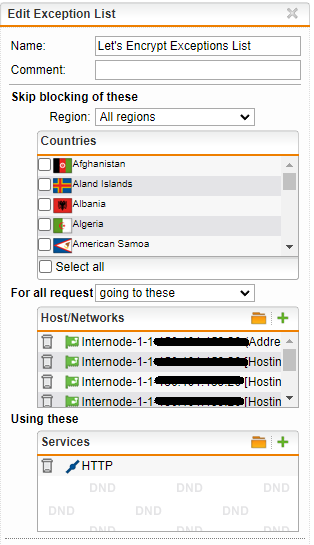
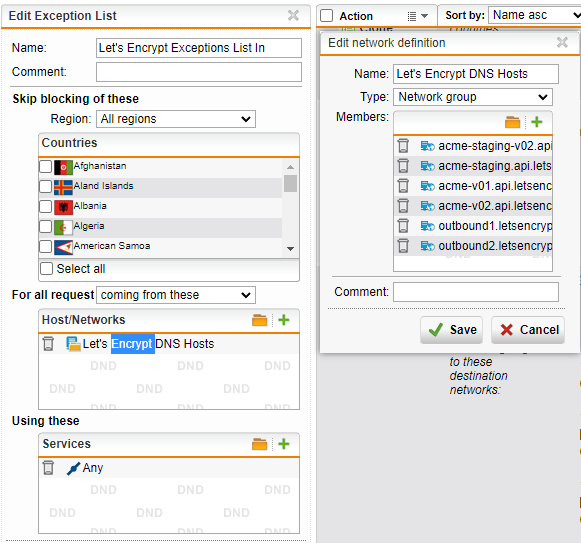
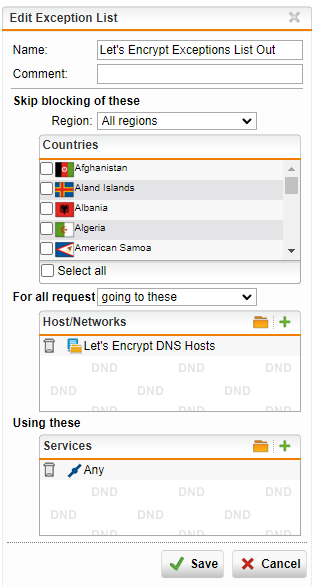
There will need to be three exclusions added for Let’s Encrypt services:

First exclusion will be setup with:

  • No countries selected
  • For all requests going to (any WAN interfaces that will be used for Let’s Encrypt and / or will have SSL protected services behind them)
  • Using services: HTTP


The next exclusion:

  • No countries selected
  • For all requests coming from:
    • Create a new Network Group and add in the following DNS Hosts:
      • acme-staging-v02.api.letsencrypt.org
      • acme-staging.api.letsencrypt.org
      • acme-v01.api.letsencrypt.org
      • acme-v02.api.letsencrypt.org
      • outbound1.letsencrypt.org
      • outbound2.letsencrypt.org
  • Using these services: Any


The final country blocking exception:

  • No countries selected
  • For all requests coming from: use the same Network Group you created in the previous rule
  • Using these services: Any


Finally, ensure all three new rules are switched on.


Certbot:

Now we need to configure & enable the Let’s Encrypt certbot built into Sophos UTM.

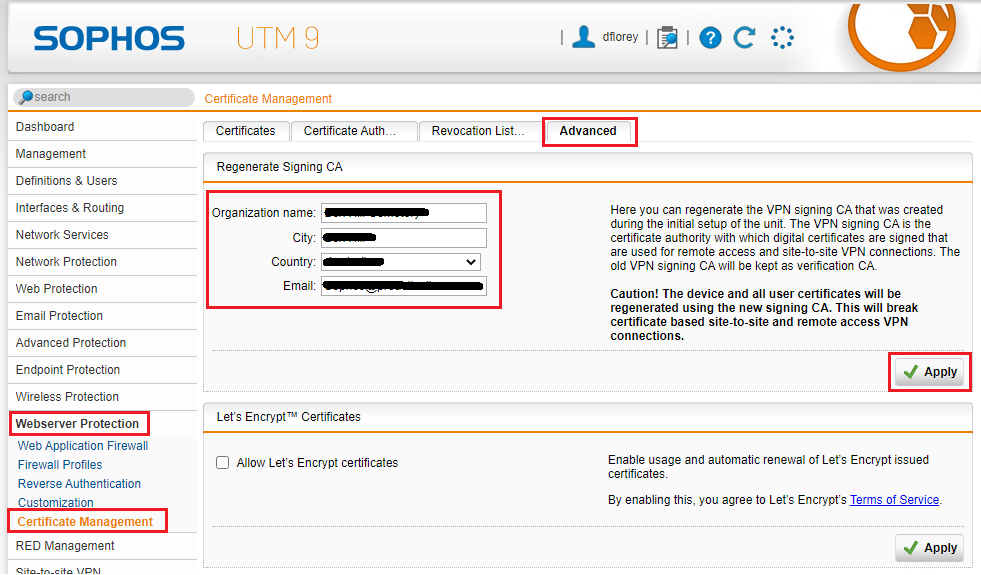
Head to Webserver Protection > Certificate Management

Click on the Advanced tab

Ensure the four fields in the Regerate Signing CA box are filled in and click Apply

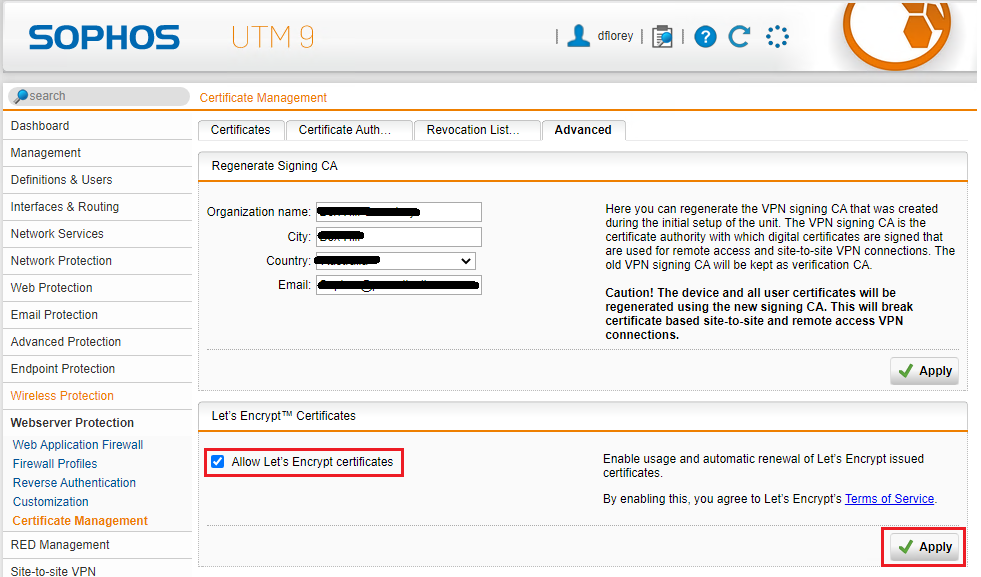
Click to place a check in the Allow Let’s Encrypt certificates checkbox and click Apply

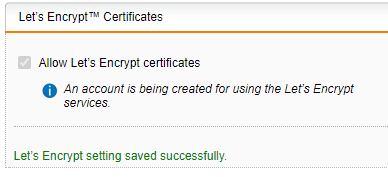
This process will take a minute or two as the account is setup with Let’s Encrypt…

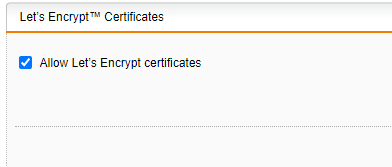
Click the Advanced tab a couple of times until the status changes from:

to:


Generate New Certificates:

Now for each certificate you want to create with Let’s Encrypt, you will need to ensure that the FQDN is pointing to the public IP address of the Sophos WAN connection, as this is how the certificates are validated & authorised by LE’s servers and the Sophos certbot.

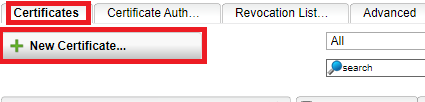
Once this is done, click on the Certificates tab

Click on the New Certificate button

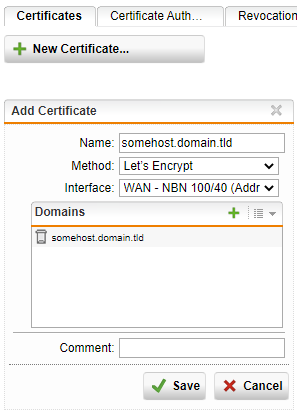
Change the method from Generate to Let’s Encrypt

  • Set the Name to match the FQDN (this makes it easier to identify later on)
  • Set the Interface to the WAN interface that the required FQDN resolves to
  • Add the FQDN to the domains list
  • Click save

This process can take 2-5 mins. Click the Certificates tab to refresh to get the status of the certificate.

Once the certificate is green and has a valid expiry date, that certificate can now be used for services as required (such as WebAdmin, User Portal, or services in the Webserver Protection).


Troubleshooting:

If you get an error regarding Let’s Encrypt failed to retrieve the current terms of service link, then there are a couple of possibilities:

Ensure you’re running the latest or very recent build of the UTM – update if not

Check the Certificate Authorities tab for anything expired, invalid, etc. and remove them.

Delete the ISRG X1-Root CA (so that only the current R3 certificate is present).

Temporarily turn off country blocking

Ensure DNS resolution on the Sophos is working

Ensure that port 80 isn’t blocked by something else – especially in a double NAT scenario

Enable the SSH access, and execute:

 /var/mdw/scripts/httpproxy restart