Upgrading Server Services post Mac OS X Upgrade hangs on Updating Wiki Service

If you’re willing to give up your Wiki service data or if you’ve never even used it in the first place, the solution is easy, just delete the /Library/Server/Wiki folder. For example you can issue the Terminal command:
sudo rm -r /Library/Server/Wiki
and then reboot the computer. You may have to force-kill the Server.app process to be able to reboot.
Run the Server App again to restart the configuration process. You’ll end up with all services intact and Server App will create a new default wiki configuration for you.

DNS – Stop and Start DNS services in MacOS X

DNS – Stop and Start DNS services in OS X Yosemite
All versions of Mac OS X from 10.0.0 to 10.9.5 have utilised the open source DNS helper daemon called mDNSResponder. As of OS X 10.10.0 Yosemite, this was removed in favour of Apple’s own in-house DNS helper daemon called discoveryd.
This decision was then reverted back with the introduction of OS X Yosemite 10.10.3 onwards as mDNSResponder was reintroduced.
Commands to restart said services in OS X Yosemite are
Command for discoveryd service:
sudo launchctl unload -w /System/Library/LaunchDaemons/com.apple.discoveryd.plist
sudo launchctl load -w /System/Library/LaunchDaemons/com.apple.discoveryd.plist
Command for mDNSResponder service:
sudo launchctl unload -w /System/Library/LaunchDaemons/com.apple.mDNSResponder.plist
sudo launchctl load -w /System/Library/LaunchDaemons/com.apple.mDNSResponder.plist

Use the terminal to enable or disable sleep functions in OS X

We all know how to use the System Preferences to enable and disable system sleep in OS X, but what about remotely via SSH or locally in the Terminal?
Also, what about preventing users from being able to put a system to sleep via the Apple menu in OS X?
Use Terminal to prevent system from going to sleep when idle:
sudo systemsetup -setcomputersleep Never
Use Terminal to set a predetermined idle time to put the system to sleep:
sudo systemsetup -setcomputersleep 60
Use Terminal to get the current sleep settings:
sudo systemsetup -getcomputersleep
Use Terminal to disable the sleep function via the Apple Menu:
sudo defaults write /Library/Preferences/SystemConfiguration/com.apple.PowerManagement SystemPowerSettings -dict SleepDisabled -bool YES
Use Terminal to re-enable the sleep function via the Apple Menu:
sudo defaults write /Library/Preferences/SystemConfiguration/com.apple.PowerManagement SystemPowerSettings -dict SleepDisabled -bool NO
These functions can be vert handy for Xsan connected Macs where you have unsupported storage subsystems that maybe affected by Macs entering sleep mode.

Set System Date in Mac OS X from Command Line with a Central Time Server

Set System Date in Mac OS X from Command Line with a Central Time Server

For ntpdate, which sets the date and time based on the time from a central server accessed via the internet, you’d want to point it either at Apple’s time servers or pool.ntp.org as follows to get the exact time:
sudo ntpdate -u time.apple.com
Enter the admin password when asked, and you’ll soon see something like the following:
4 Jul 14:30:11 ntpdate[28267]: adjust time server 17.151.16.14 offset 0.000336 sec
The offset at the end lets you know how divergent the system clock was with the newly set time. In this example, the system clock was off by a laughably small fraction of a second.
You generally don’t need to do this if you use the “Set date and time automatically” feature within the Date & Time system preferences, though by setting clocks through the command line you could be sure that each machine on a network shows the exact same time.

Set the Mac System Date Manually by Terminal Command

Another approach is to set the date manually from the command line by using the “date” command string, where date is in the [mm][dd]HH]MM[yy] format, which is Month Date Hour Minute Year without any separation. This looks something like:
date 0712122318
For that example, it would set the date as “July 12 2018 at 12:23”.
You can learn more about setting the date with date –help, which also specifies that you can even set the seconds if you want to.

Install Brew on MacOS

Homebrew is used as a package manager for installing applications & utilities through the command line.

Like other Linux package managers, it can also build from source if required.

Enter the below into a Terminal session:

/bin/bash -c "$(curl -fsSL https://raw.githubusercontent.com/Homebrew/install/HEAD/install.sh)"

This will download and install Xcode tools which will generally be over 5GB.


How to Repair Verify Disk Permissions in OS X El Capitan

Open the Terminal application (found in /Applications/Utilities/) and use the following syntax to verify a volumes permissions, this will verify the default root volume of a Mac:

sudo /usr/libexec/repair_packages --verify --standard-pkgs /

If you want to verify permissions on a different drive, specify the volume rather than “/”

The command will run and either show permissions that differ, or nothing, depending on what’s found. Not surprisingly, you’ll likely find some variation of permissions that differs, looking something like:

Permissions differ on "usr/libexec/cups/cgi-bin", should be drwxr-xr-x , they are dr-xr-xr-x .
Permissions differ on "usr/libexec/cups/daemon", should be drwxr-xr-x , they are dr-xr-xr-x .
Permissions differ on "usr/libexec/cups/driver", should be drwxr-xr-x , they are dr-xr-xr-x .
Permissions differ on "usr/libexec/cups/monitor", should be drwxr-xr-x , they are dr-xr-xr-x .

How to Repair Disk Permissions in OS X El Capitan from Command Line

Assuming permissions have been found which differ and you’d like to repair them, replace the –verify flag with –repair, and again point the command at the same volume

sudo /usr/libexec/repair_packages --repair --standard-pkgs --volume /

Repairing permissions may take a while, just like it did from Disk Utility.

Verify and repair disk permissions in OS X from command line

If you execute the repair_packages command without sudo and with no specifications or flags, you’ll get a simple help guide instead:

$ /usr/libexec/repair_packages
Usage: repair_packages [ARGUMENTS]...
Commands:
--help Print this usage guide.
--list-standard-pkgs Display the package ids in the standard set.
--verify Verify permissions on files in the specified package(s).
--repair Repair permissions on files in the specified package(s).
Options:
--pkg PKGID Verify or repair the package PKGID.
--standard-pkgs Verify or repair the standard set of packages.
--volume PATH Perform all operations on the specified volume.
--output-format # Print progress info using a special output format.
--debug Print debuging information while running.

As suggested, this is not really something that should be run on a regular basis as any part of Mac maintenance routine, and it’s rarely necessary, which is likely why Apple pulled it from the Disk Utility application.

By the way, earlier releases of OS X also have a command line approach to repairing disk permissions, but it’s handled through the Disk Utility command line tool instead.
Source: OSXDaily

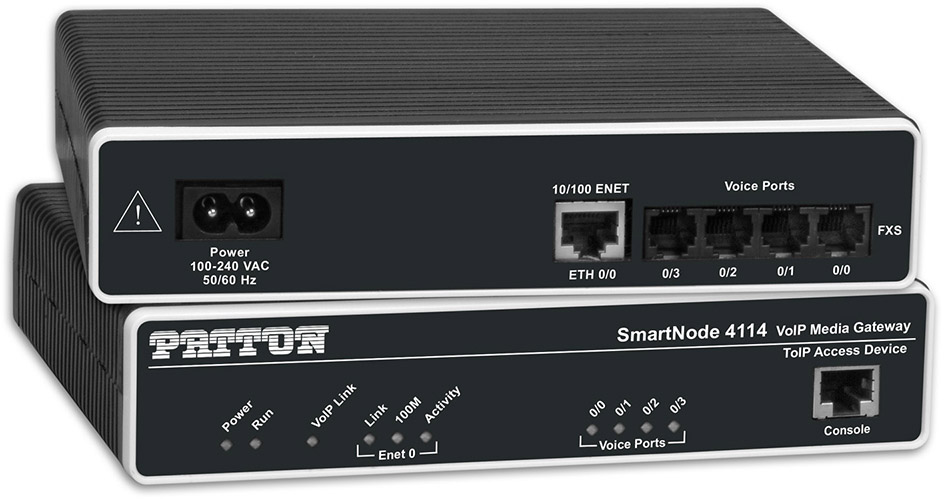
Patton SIP Gateway at remote site using 3CX SBC

This guide will demonstrate the use of a Patton SIP Gateway to Analog FXO/FXS connected to 3CX via the SBC gateway.

The use cases for this are where the 3CX instance is hosted, but it needs access to FXO or FXS connections at the client office. It can also be used in scenarios where the client has branch offices with FXO or FXS connection requirements within the 3CX system at head office.

Follow the setup guide for the Patton gateways located below:
FXO: https://www.3cx.com/voip-gateways/patton-smartnode-sn4112/
(for this guide, I used the FXO version)
FXS: https://www.3cx.com/voip-gateways/patton-smartnode-sn4112-fxs/
But don’t follow the whole guide as we need to make alterations to the config file prior to uploading it to the Patton appliance.

Basically, we need to create the SIP Gateway entity in 3CX, export the config, modify it, and upload into the gateway – do the following:

3CX Management > SIP Trunks > Add Gateway
Select Brand: Patton
Select appropriate model or type
Enter the number of ports the device has (not the number you intend to use – must be total)
Enter the main trunk number

Next, enter the local IP address of the device (must be static or DHCP reservation)
Subnet mask: applicable to the gateway’s local network
Tone Selection region: Australia
Number or SIM calls: this is where you specify the number of lines you will be using
Number of physical PSTN ports: should be pre-populated from earlier.

Under options, Dial Delay: Wait for Dial Tone
Hit OK, then go back into the SIP Gateway in 3cx, next to the blue OK button is Generate device config
This will open a new tab or window into the Patton’s import screen and download the config file to your local computer
Open the config in Notepad++ or similar
Locate the 3CX’s local IP address – using find & replace to replace them all with the SBC’s local IP address
Save and import this config into the Patton gateway, reload, wait, and it should be visible to 3CX once loaded & connected behind the SBC.

LG-NORTEL iPECS-300 Maintenance Password Reset

Connect to the PBX using a 9-pin female to 9-pin female serial console cable.

Use Putty or similar to console in with 115200,8,N,1

Press Enter to initialise the console

Password to enter console mode is: jannie

Reset the maintenance password using:

password man <your new maint password here>

Now you should be able to login to the web interface using the maintenance account and the password set on the end of the terminal command.

Extra notes: https://www.tek-tips.com/viewthread.cfm?qid=1783908


3CX Monitoring in PRTG

This script is designed for Debian Linux based 3CX deployments that need to be monitored in PRTG.

Create the scripts in

/var/prtg/scripts

Call the script: 3cxstatuscheck.pl

Make it executable:

chmod +x 3cxstatuscheck.pl

Edit using nano:

#!/usr/bin/perl
#
#
#Script which checks several things on a linux box and then reports back to PRTG
#
$message = "3CX DNS resolve services and logfile OK ";
$status = "0";
@services = ("3CXAudioProvider01","3CXCfgServ01","3CXEventNotificationManager","3CXIVR01","3CXMediaServer","3CXPhoneSystem01","3CXPhoneSystemMC01","3CXQueueManager01","3CXSystemService01","3CXTunnel01");
# Get information from PING about DNS lookupability
open(DNS, "nslookup www.cisco.com|");
@dnsout = <DNS>;
close(DNS);
if ($dnsout[3] =~ m/can't find/)
{
$message = "Unable to resolve DNS";
$status = "1";
}
#check all of the services
foreach $service (@services)
{
open(SERVICECHK, "systemctl status $service|");
@servicestatus = <SERVICECHK>;
close(SERVICECHK);
# print "\n $servicestatus[2] \n";
if ($servicestatus[2] =~ m/running/)
{
#this service is active
}
else
{
#something is wrong with this service
$status = "1";
$message = "One or more 3CX services currently not running";
}
}
#check the end of the log file
open(LOGCHK, "tail -n 500 /var/lib/3cxpbx/Data/Logs/3CXMediaServer* |grep Error|");
@logstatus = <LOGCHK>;
close(LOGCHK);
if ($logstatus[3] =~ m/Error/)
{
#something is wrong with this service
$status = "1";
$message = "3CX Logfile contains many recent errors";
}
if ($status eq '0')
{
print "0:0:3CX OK: $message";
}
else
{
print "2:2:3CX DEGRADED: $message";
}

Add to PRTG as an SSH script sensor.