Exchange On-Premise – Handy Commands

Some handy commands for Microsoft Exchange Server on-premise – a growing list…

List all mailboxes across all databases:

Get-Mailbox

This doens’t include system & arbitration mailboxes.


List all arbitration mailboxes across all databases:

Get-Mailbox -Arbitration

This doesn’t include user or resource mailboxes.


List all mailbox databases:

Get-MailboxDatabase


Move a single mailbox to another mailbox database:

New-MoveRequest -TargetDatabase <databaseName> -Identity <mailboxID>

Notes:

  • The mailbox identity can be in quote marks
  • The mailbox identity can be one of the following:
    • GUID
    • Distinguished name (DN)
    • Domain\Account
    • User principal name (UPN)
    • LegacyExchangeDN
    • SMTP address
    • Alias


Get the current status of all mailbox move requests:

Get-MoveRequest -ResultSize Unlimited | Get-MoveRequestStatistics


Get the current status of a single mailbox move request:

Get-MoveRequest -Identity "john.doe@example.com" | Get-MoveRequestStatistics


Remove completed mailbox move requests:

Get-MoveRequest -MoveStatus Completed | Remove-MoveRequest -Confirm:$false


Resume all suspended mailbox move requests:

Get-MoveRequest -MoveStatus Suspended | Resume-MoveRequest


DCDIAG Result – Warning: Attribute userAccountControl of DC is: 0x82020

Issue:

When performing a DCDIAG, you get a warning with output:

Warning: Attribute userAccountControl of DC is: 0x82020 = ( UF_PASSWD_NOTREQD | UF_SERVER_TRUST_ACCOUNT | UF_TRUSTED_FOR_DELEGATION )
Typical setting for a DC is 0x82000 = ( UF_SERVER_TRUST_ACCOUNT | UF_TRUSTED_FOR_DELEGATION )
This may be affecting replication?

Cause:

The computer account was pre-created in Active Directory Users and Computers (ADUC) before being added to the domain and promoted as a domain controller.

Fix 1:

  • Launch ADSI Edit and connect to the Default Naming Context
  • Drill down into the Domain Controllers OU
  • Double-click the domain controller and in the Attribute Editor tab, scroll down to userAccountControl
  • You will likely see the value set to something like:
0x82020 = (PASSWD_NOTREQD...
  • Highlight the value and click Edit
  • Change the value in the edit box from 532512 to 532480
  • Click OK and OK again to save the changes

Now running DCDIAG should show this error to have been cleared.

Fix 2:

You can use an elevated PowerShell session to automate the process of the above steps in Fix 1 to all domain controllers in the Domain Controllers OU.

Change the -searchbase criteria in the below and execute:

get-adobject -filter "objectcategory -eq 'computer'" -searchbase "ou=Domain Controllers,dc=domain,dc=tld" -searchscope subtree -properties distinguishedname,useraccountcontrol | select distinguishedname, name, useraccountcontrol | where {$_.useraccountcontrol -ne 532480} | %{set-adobject -identity $_.distinguishedname -replace @{useraccountcontrol=532480} -whatif}

Even if the above command fails to fix the values, it will at least list servers with the incorrect values – handy where there are numerous domain controllers present.

Extra Information:

Some typical values:

  • Standard user: 0x200 (512)
  • Domain controller: 0x82000 (532480)
  • Workstation / member server (non-DC): 0x1000 (4096)


Can’t activate Exchange Server – Use this Exchange Powershell command to activate your Exchange Server

I recently had an issue where through ECP I was unable to activate a new Exchange server 2019 I was building. I believe my issue may have been I was logged into the ECP of an older Exchange (2016) server as the 2019 server’s ECP wasn’t yet accessible.

In any case, you can use this command to activate Exchange servers from the Exchange Powershell:

Set-ExchangeServer -Identity MyNewExchangeServer -ProductKey 12345-12345-12345-12345-12345

Once this has been successfully issued, you will need to restart the Microsoft Exchange Information Store service.


Change the default OU’s in AD for new Users and Computers

By default, when new users & computers are created in active directory where the OU hasn’t been specified at creation, AD defaults to the following OU’s:

  • Users go into: DC=domain,DC=tld\Users
  • Computers go into: DC=domain,DC=tld\Computers

These can be changed to go into OU’s that you choose by issuing the following commands in an elevated PowerShell session / command prompt and change directory to:

cd C:\Windows\System32\

Users:

redirusr “OU=<newuserou>,DC=<domainname>,DC=com”

Computers:

redircmp “OU=<newcomputerou>,DC=<domainname>,DC=com”

Hint: Obtain the OU distinguish name from the advanced properties of the OU itself.

Sophos SG/XG/XGS Hardware Brochure

Attached here is the hardware brochures for the Sophos SG R1, R2, R3, XG, and XGS firewall appliances.

  • Click here for Sophos SG R1 series hardware appliances
  • Click here for Sophos SG R2/R3 series hardware appliances
  • Click here for Sophos XG series hardware appliances
  • Click here for Sophos XGS series hardware appliances

Copyrights apply to the original copyright holders, simply mirrored here for educational / historical / archival purposes.

Restrict High Memory Usage by Information Store on Exchange 2007 / 2010 (also SBS 2008 / 2011)

Scope:

Microsoft Exchange Server 2007 and Microsoft Exchange Server 2010 (in conjuncion with Active Directory), or Microsoft Small Business Server 2008 / 2011.

Issue:

Microsoft Exchange Information Store (store.exe) consuming excessive amounts of system memory, often causing the server performance to take a significant hit.

Solution:

On the domain controller, open ADSI Edit (adsiedit.msc)

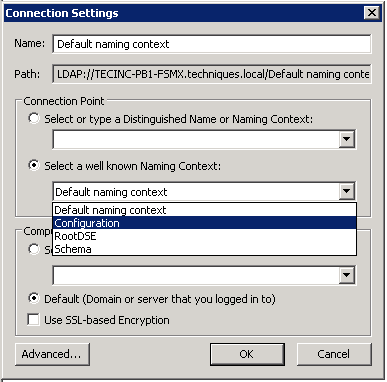
Connect to Well Known Name Context: Configuration

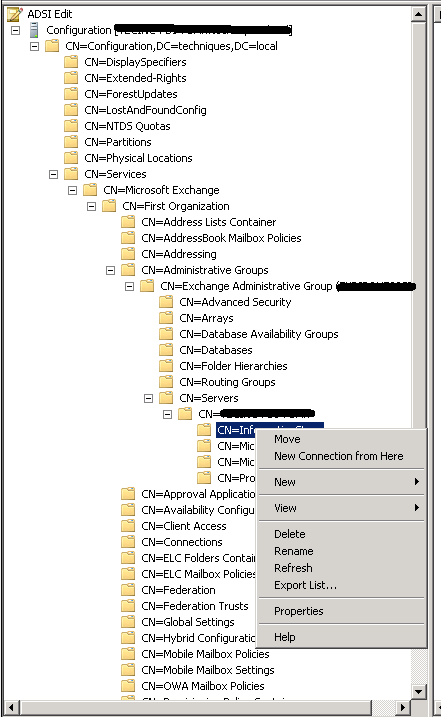
Drill into: Configuration > Services > Microsoft Exchange > [domainName] > Administrative Groups > Exchange Administrative Group > Servers > [serverName]

Right click on the server name and right click Information Store, then go to Properties

In the properties window, scroll down to the two attributes:

  • msExchESEParamCacheSizeMax
  • msExchESEParamCacheSizeMin

By default, the values of both are <not set>

We need to set values for both, if you only set values for the Max, then without the Min, the setting will not take place.

For Exchange 2007 (SBS 2008):

  • 1GB – 131072
  • 2Gb – 262144
  • 4Gb – 524288
  • 6Gb – 786432
  • 8Gb – 1048576

For Exchange 2010 (SBS 2011):

  • 1Gb – 32768
  • 4Gb – 131072
  • 6Gb – 196608
  • 8Gb – 262144
  • 12Gb – 393216

Note that Exchange 2007 uses a page size of 8KB and Exchange 2010 uses a page size of 32KB (hence the differing values).

Restart (or schedule restart) the Exchange server once the values have been applied.

Notes:

Although this solution is documented by Microsoft its not a supported configuration.

Don’t set the Max values too small otherwise your mailbox store may run into other issues and if too small, will cause more disk paging instead.

Raspbian / Debian apt-get update buster InRelease changed its suite from stable to oldstable

Issue:

Running Debian or Raspbian Buster and issuing the command(s):

apt-get update

or

sudo apt-get update

Doesn’t appear to go through and provides the following output messages:

Get:1 http://raspbian.raspberrypi.org/raspbian buster InRelease [15.0 kB]
Get:2 http://archive.raspberrypi.org/debian buster InRelease [32.6 kB]
Reading package lists... Done
E: Repository 'http://raspbian.raspberrypi.org/raspbian buster InRelease' changed its 'Suite' value from 'stable' to 'oldstable'
N: This must be accepted explicitly before updates for this repository can be applied. See apt-secure(8) manpage for details.
E: Repository 'http://archive.raspberrypi.org/debian buster InRelease' changed its 'Suite' value from 'testing' to 'oldstable'
N: This must be accepted explicitly before updates for this repository can be applied. See apt-secure(8) manpage for details.


Cause:

Debian has not too long ago updated the release from Buster to Bullseye, which means that Buster is no longer the ‘In Release’ build of Debian or Raspbian Linux.


Solution:

You need to let APT change the ‘suite’ values from stable to oldstable by issuing the command(s):

apt-get update --allow-releaseinfo-change

or

sudo apt-get update --allow-releaseinfo-change


Sophos SG UTM – WAF Setup for UniFi Controller

Scope:

This post will guide you to setting up the Web Application Firewall to present the UniFi controller to the Internet with a reverse proxy & SSL certificate.


Prerequisites:

  • A fully qualified domain namd (FQDN) for the UniFi controller (eg: unifi.domain.tld)
  • Public hosted DNS record for the above FQDN pointing to the public IP address terminated at the Sophos SG/UTM
  • A static public IP address terminated at the Sophos SG/UTM
  • SSL Certificate(s) matching the FQDN(s) installed on the Sophos (see Let’s Encrypt if you want to use this feature)
  • Internal UniFi controller you wish to make externally accessible via the WAF


Setup Internal Server:

Login to the SG UTM

Head to Webserver Protection > Web Application Firewall in the side menu

Click on the Real Webservers tab

Click the New Real Webserver… button

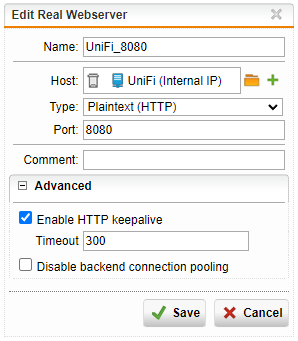
  • Enter the name to be the same as the Internal UniFi controller host, add an underscore followed by the port number. Example: UNIFI_8080
  • In the host picker, add the host. If the host item doesn’t actually exist in the Sophos, click the + icon to create a new internal host entry
  • The type options are HTTP and HTTPS. Use HTTP for ports 8080, 8880, and use HTTPS for 8443, 8843, etc.
  • Set the port to match what you entered after the underscore in the Name field
  • Click Save

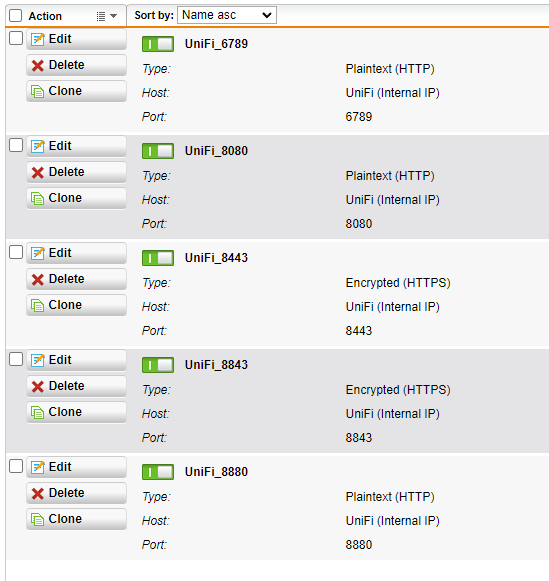
Repeat for the rest of the entries for the UniFi controller so you have an entry for each of the four required services ports
Now head to the Virtual Webservers tab

Click the New Virtual Webserver… button

  • Enter the name as the public FQDN followed by an underscore and the port number – makes for ease of identification
  • Select the WAN interface the FQDN resolves to via public DNS
  • Set the appropriate type (HTTP, HTTPS, or HTTPS & redirect) – see below for these
  • Set the port to match the port you specified in the name (warning, when you change the above type, the port reset to the default (80 or 443)
  • Enter in the FQDN in the domains list
  • Place a tick next to the appropriate matching Real webserver with the matching port located inthe Real Webservers for path ‘/’ list
  • For the firewall profile, right now we won’t select anything – this can be adjusted at a later stage if / when required.
  • Don’t change the theme
  • Expand out the Advanced section and ensure all three selections items are deselected as these are not used for UniFi controllers.
  • Click save and repeat for each required virtual server.

Note, when adding in virtual webserver with the type set to either HTTPS or HTTPS & redirect, the Certificate dropdown list becomes available – this is where you will select the appropriate SSL certificate with the matching FQDN (or wildcard certificate).
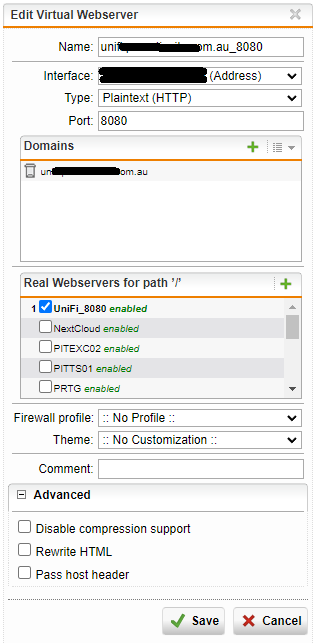
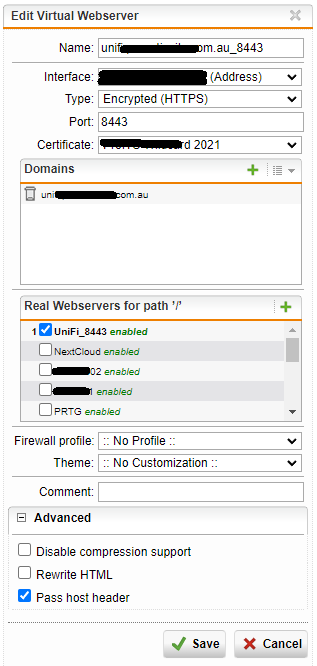
 

Once they have been added, the virtual servers will look like this:
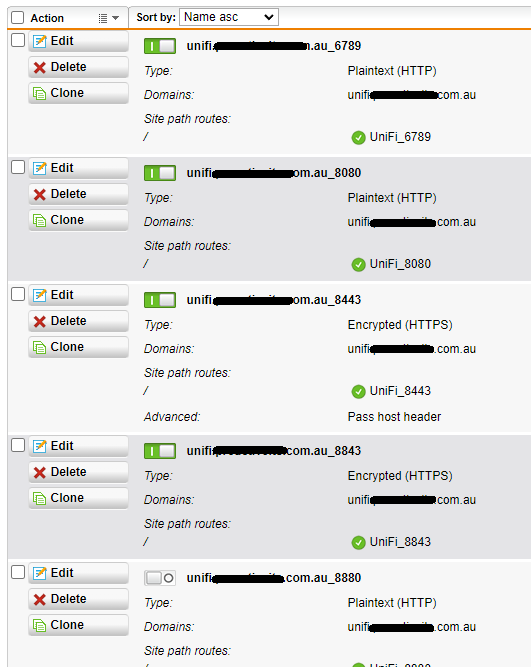
Note:

  • Ports 6789, 8080 and 8880 need to be set to HTTP
  • Ports 8443 and 8843 need to be set to HTTPS

Now we need to enable WebSocket passthrough for the 8443 entry otherwise the controller will contantly complain that WebSockets aren’t working

Click on the Site Path Routing tab

Locate the site path routing entry automatically created for the 8443 entry and click Edit

Expand out the Advanced box and place a tick next to the checkbox item labelled Enable WebSocket passthrough
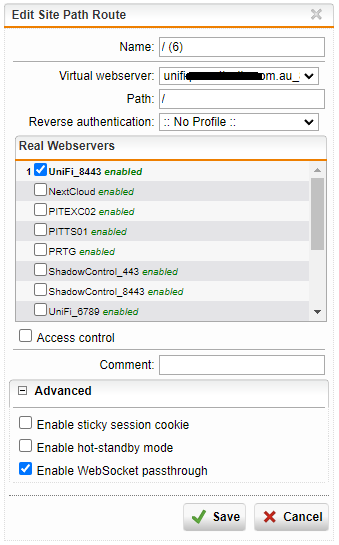
Ensure all the Real Servers and Virtual Servers are switched on

Next we need to check the Firewall NAT settings

Head over to Network Protection > NAT

Click on the NAT tab

Locate and turn off any NAT rules that may be present for the UniFi controller using the same ports as you configured in the Web Application Firewall (so ensure that these are OFF: 8080, 8443, 6789, 8843, and 8880)

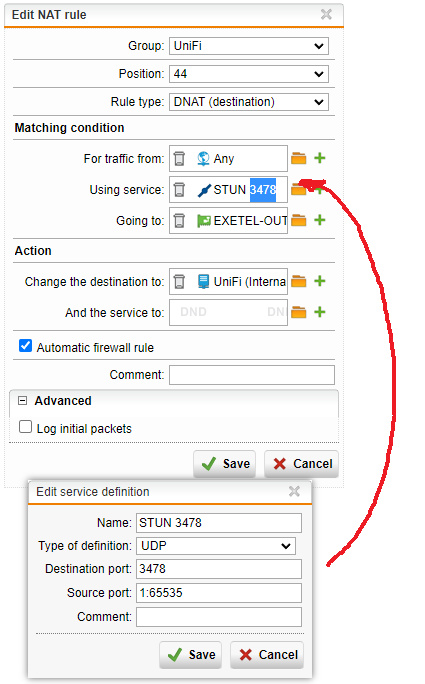
Ensure a NAT rule exists and is enabled for STUN to passthrough to the controller.

Create a New NAT Rule…

  • Rule type: DNAT
  • For traffic from: Any
  • Using service: STUN 3478 (you may need to create this rule, it will be a UDP port)
  • Going to: the same public WAN interface you are using on the WAF for the UniFi controller
  • Change the destination to: the internal UniFi controller host
  • Tick to enable Automatic firewall rule
  • Click save.

Switch on the new NAT rule to activate it.

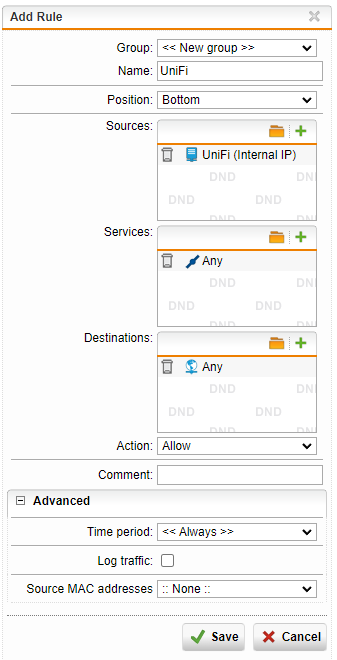
Finally, we need to create an outbound firewall to allow the internal UniFi controller to access the network beyond the firewall

Head to Network Protection > Firewall

Click New Rule…

  • Create a new Group called UniFi
  • Source: select the internal UniFi host
  • Service: Any
  • Destinations: Any
  • Action: Allow
  • Save
  • Enable the rule to activate it.

Now you should have a working UniFi controller that is publicly accessible (and internally accessible) that is behind the Sophos WAF and you an use the FQDN to access it with a valid SSL certificate.
 

Some Notes & WIP:

In the above examples, the virtual web server for 8880 is currently disabled and a NAT rule exists for 8880 instead, as this port is used for the UniFi controller’s guest WiFi web portal. I am in the middle of troubleshooting an issue where this wouldn’t work from behind the WAF. I will update this space once I have resolved this.


 

Kali Linux 2022.1 Installation error: “Installation step failed”

Date: 2022-02-21

Kali Linux versions affected: Kali 2022.1 x64 (may also affect others), both GUI and TUI installer environments

Problem:

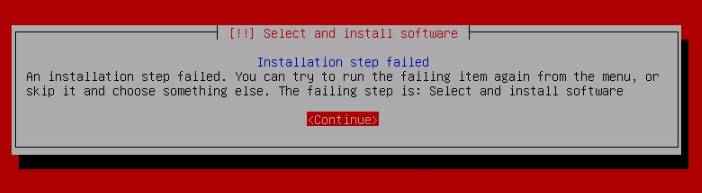
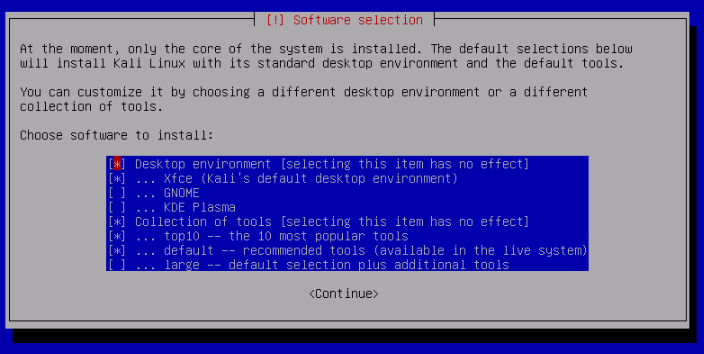
During the installation of Kali, at the software selection installation, the installer proceeds to copy the files, and produces an error – reducing the package selection down to only the top 10, appears to allow installation without error, but then requires all further package installs to be performed OS installation.

Error Produced:

Workaround:

Access a spare console using either CTRL+F2 or CTRL+F3

Please press Enter to activate this console

BusyBox v1.30.1 (Debian 1:1.30.1-4) built-in shell (ash)
Enter 'help' for a list of built-in-commands.

~ # cd /var/log
/var/log # tail -f syslog

Find the target installation using the command:

df -h

Locate your dev device and comfirm the target folder – for me it was /target

Chroot your way into that folder:

chroot /target

Edit the sources file:

nano /etc/apt/sources.list

Comment out the line for the sources pointing to the cdrom

#deb cdrom:[Kali GNU/Linux 2020.3rc2 _Kali-last-snapshot_ - Official amd64 NETINST with firmware 20200728-20:31]/ kali-rolling contrib main non-free

Now add a new sources line to pull down the repositories from the internet:

deb http://http.kali.org/kali kali-rolling main non-free contrib
deb-src http://http.kali.org/kali kali-rolling main non-free contrib

Save and close the file, then update:

apt-get update

Once updated successfully, head back to the installer by pressing CTRL+F5 or CTRL+F7

Perform the software selection and install the OS. Note that the installation will now pull all sources from the internet instead of the CD / USB resources.

Useful Links for all things 3D Printing

This post is purely a web directory and notes for things I personally find useful for all things related to 3D printing!

Free models of community submissions for print: https://thingiverse.com/

Resources for my first purchased (not custom or self designed) 3D printer: https://www.voxelab3dp.com/product/aquila-diy-fdm-3d-printer


Some CAD applications:

3D Print host server: https://octoprint.org

Calibration resources: